How to make AI videos for YouTube, step by step (Shorts and faceless channels)
An AI video for YouTube is six small jobs: an idea, a script, a voice, visuals, captions and an edit. You can do each with a separate tool or all of them in one. Here is the full workflow, what each step needs, and the checks that keep the video inside YouTube's rules.
By the FacelessHype team
6 min read
Updated November 1, 2026
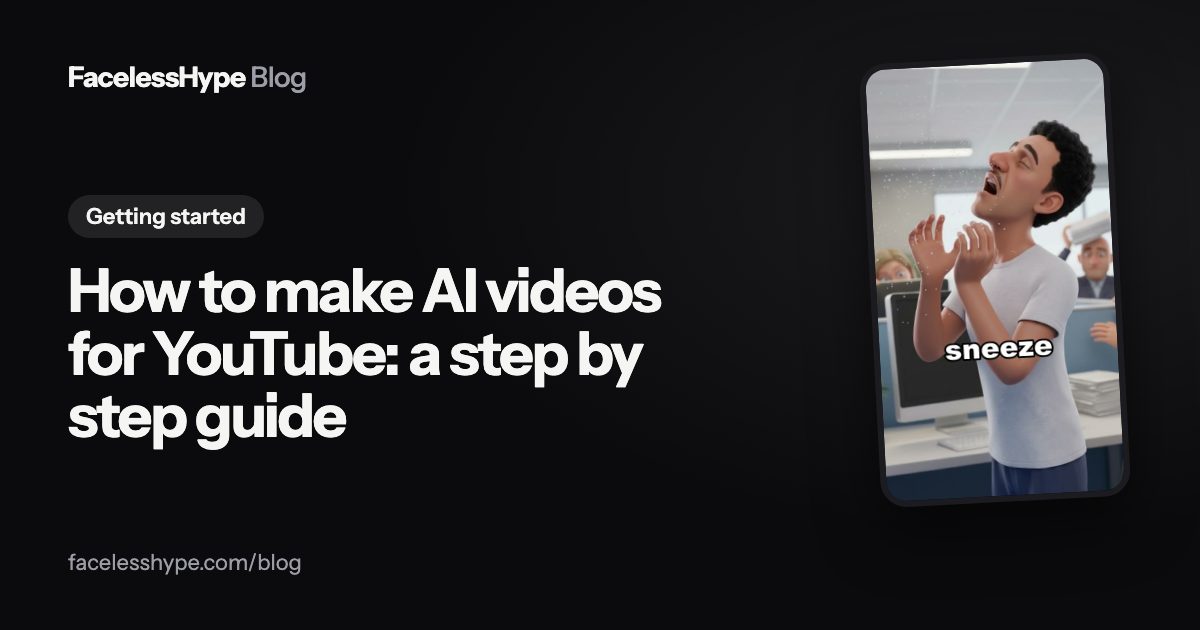
If you want to know how to make AI videos for YouTube, the honest answer is that "AI video" is not one thing. A finished faceless Short is six parts: an idea, a script, a voice, visuals, captions and an edit that puts them together. AI can help with every part, but each part still needs a decision from you.
This guide goes through the parts in order, for a vertical Short, and then compares the two ways to do it: separate tools for each step, or one tool for all of them.
Step 1: Pick an idea that can be one video
Start with a topic that has a single surprise or question at its heart. "Why octopuses have three hearts" works. "Everything about the ocean" does not.
Good AI video ideas share three traits:
- One clear question or story, answerable in under a minute.
- Something to show for every line, so the visuals are not filler.
- Room for many more, so your channel can make 100 videos in the same niche.
The formats page lists niches that work this way, from what if questions to history oddities, and our best faceless niches post compares them.
Step 2: Write the script
The script is the video. Every voice line, caption and picture comes from it. Write it in beats: a hook, a short setup, a turn, a payoff and a last line. YouTube's Shorts guide says to "Capture attention in the first few seconds to prevent viewers from scrolling", so the first line matters most.
AI writing tools are fine for a first draft. YouTube's monetization policies even give "using AI to edit your video scripts" as an allowed use. Check every fact, because AI tools invent details. Our guide on how to write a YouTube Shorts script has a template and a prompt.
Step 3: Make the voice
Most faceless channels use a text to speech narrator. Pick one voice that suits the niche and keep it on every video, so viewers recognise the channel. Read through the script once with the voice and fix any word it says strangely.
Never imitate a real person's voice. Our guide to AI voice for YouTube covers monetization and disclosure for AI voices.
Step 4: Make the visuals
Every line of the script needs a picture. There are two main kinds of AI visuals:
- AI photos with camera moves. An AI photo for each line, with a slow zoom or pan so it never looks frozen. Cheaper and faster, and the look most faceless channels use.
- AI video clips. Each scene really moves. More expensive, and best for stories with characters and action.
Whichever you use, change the picture every few seconds and make sure the picture shows what the line says. If the narrator says "the eggs were numbered", the picture is numbered eggs.
For stories, keep characters looking the same from scene to scene, or the video stops making sense. Our post on how to make AI story videos explains how.
Step 5: Add captions
Many people watch with the sound off, so burn captions into the video. Use big, heavy words, one to three at a time, and keep them clear of the buttons and text the app draws over the bottom and side of the screen. Our guide on how to add captions to YouTube Shorts compares YouTube's automatic captions with burned in ones.
Step 6: Edit, export and upload
Put the voice, visuals and captions on a timeline, add music if you have the rights to it, and export as a vertical video.
The format rules are set by YouTube: videos with a "square or vertical aspect ratio up to three minutes in length" are treated as Shorts, according to its three minute Shorts page. The same page warns that "Shorts longer than one minute that have an active Content ID claim" are blocked, so check your music rights before you make a longer Short. Our guide to YouTube Shorts size covers the exact dimensions.
When you upload, answer the "AI use" question honestly. YouTube's disclosure page asks you to disclose realistic AI content, such as a real person appearing to say something they did not, but not "non-realistic content that's made with AI". And "Disclosing AI content alone won't limit a video's audience or impact its eligibility to earn money."
Separate tools or one tool?
You can do the six steps with six tools, or with one tool that does all of them. Neither is wrong. Here is how they compare:
| What matters | Separate tools | One tool |
|---|---|---|
| Control | Full control of every step | Less fiddly, some choices are made for you |
| Time per video | Longer: you move files between apps | Shorter: idea in, finished video out |
| Skills needed | Some editing know how | Very little |
| Cost | Several subscriptions | One subscription |
| Consistency | Up to you every time | Same voice, captions and look by default |
| Best for | People who enjoy editing | People who want to post often and focus on ideas |
A fair way to choose: if you already edit video and like it, separate tools give you the most freedom. If editing is the part you would skip, one tool saves the most time. Either way, you still pick the idea and check the result.
Checks before you post any AI video
Run through this list before every upload:
- Is it a new idea, not the same template with a few words changed?
- Is every fact true?
- Does every picture match its line?
- Are the captions readable on a phone, and clear of the app's buttons?
- Do you have the rights to the music and any footage?
- Did you answer the AI disclosure question honestly?
The policy reasons behind these checks are in can you monetize AI videos on YouTube.
Making AI videos with FacelessHype
FacelessHype is the one tool option. Type one sentence and it writes the script, records the voice, makes a picture or a moving scene for every line and burns in the captions. You choose AI photos or AI video for each Short, and the price shows before you press Create video. You see every scene in a preview first, you can remake a single clip without starting over, and you download a vertical MP4 to upload yourself. See the YouTube Shorts maker for the details, or text to video AI for how a typed idea becomes each scene. The first video is free.
Quick answers
Can I make AI videos for YouTube for free? Many tools have free tries or free tiers with limits. The real cost is your time, so pick the workflow you can keep up.
Are AI videos allowed on YouTube? Yes, if they follow the Community Guidelines. To earn, they also need to meet the monetization policies, which are about originality, not about AI.
How long does it take to make an AI Short? With separate tools, most of the time goes into moving files between apps and editing. With one tool, most of it goes into picking the idea and checking the result.
Do AI videos need a label on YouTube? Only realistic content that could mislead viewers. Animation and clearly stylized visuals do not.
Sources
Platform rules change, so check the source before you rely on a figure.
- YouTube Help: Understand three-minute YouTube Shorts (read November 1, 2026)
- YouTube Help: Disclosing use of altered or synthetic content
- YouTube Help: Channel monetization policies
- YouTube Blog (April 8, 2025): Your guide to getting started with YouTube Shorts
Written by the FacelessHype team. FacelessHype is not affiliated with YouTube or TikTok. Nothing here is a promise of views or income.